Productivity
DiskSense
See what fills your Windows drives, which app owns it, and where files went. Read-only.
- Category
- Productivity
- Stage
- Pre-launch
- For
- Windows 10 & 11 users
About
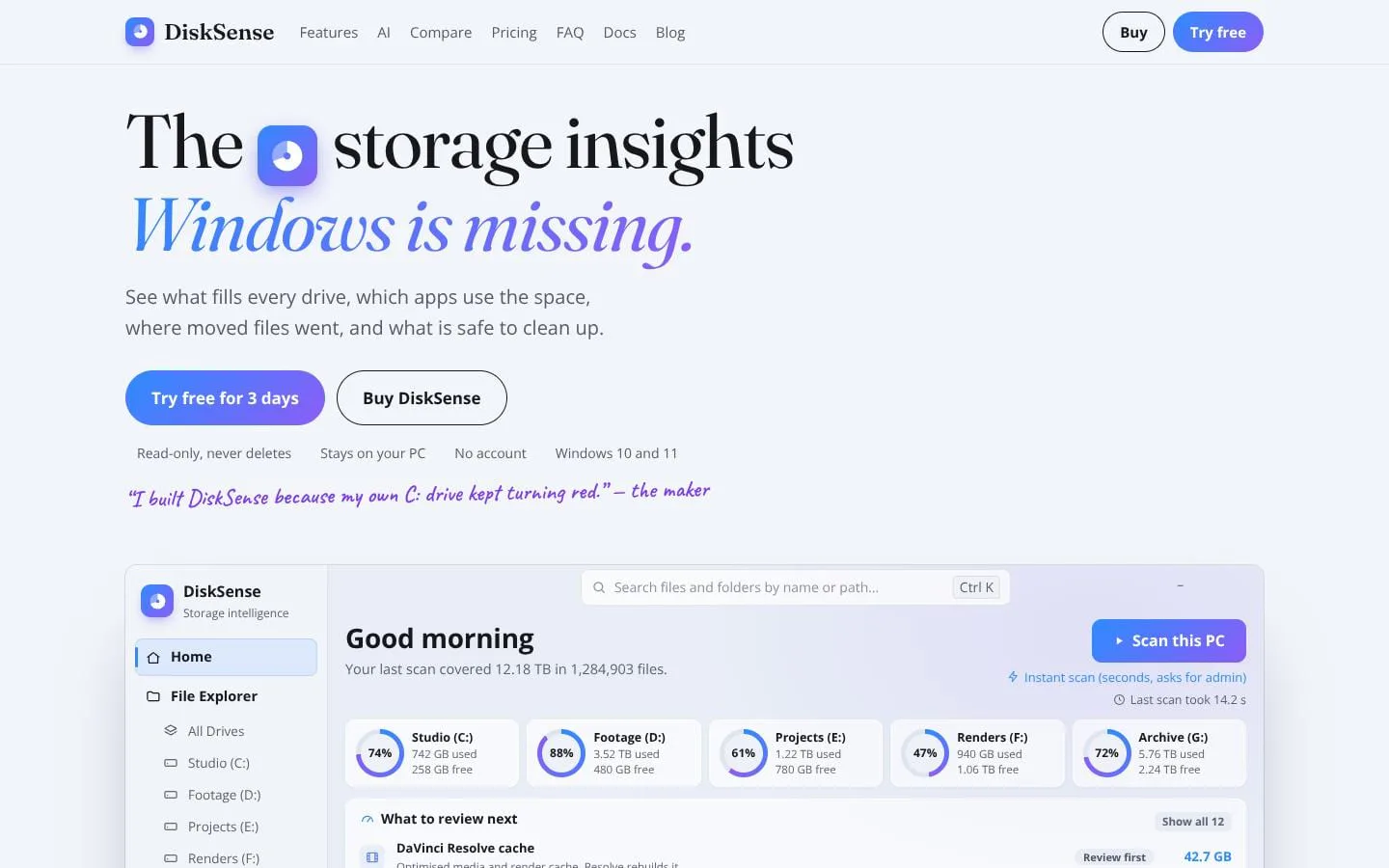
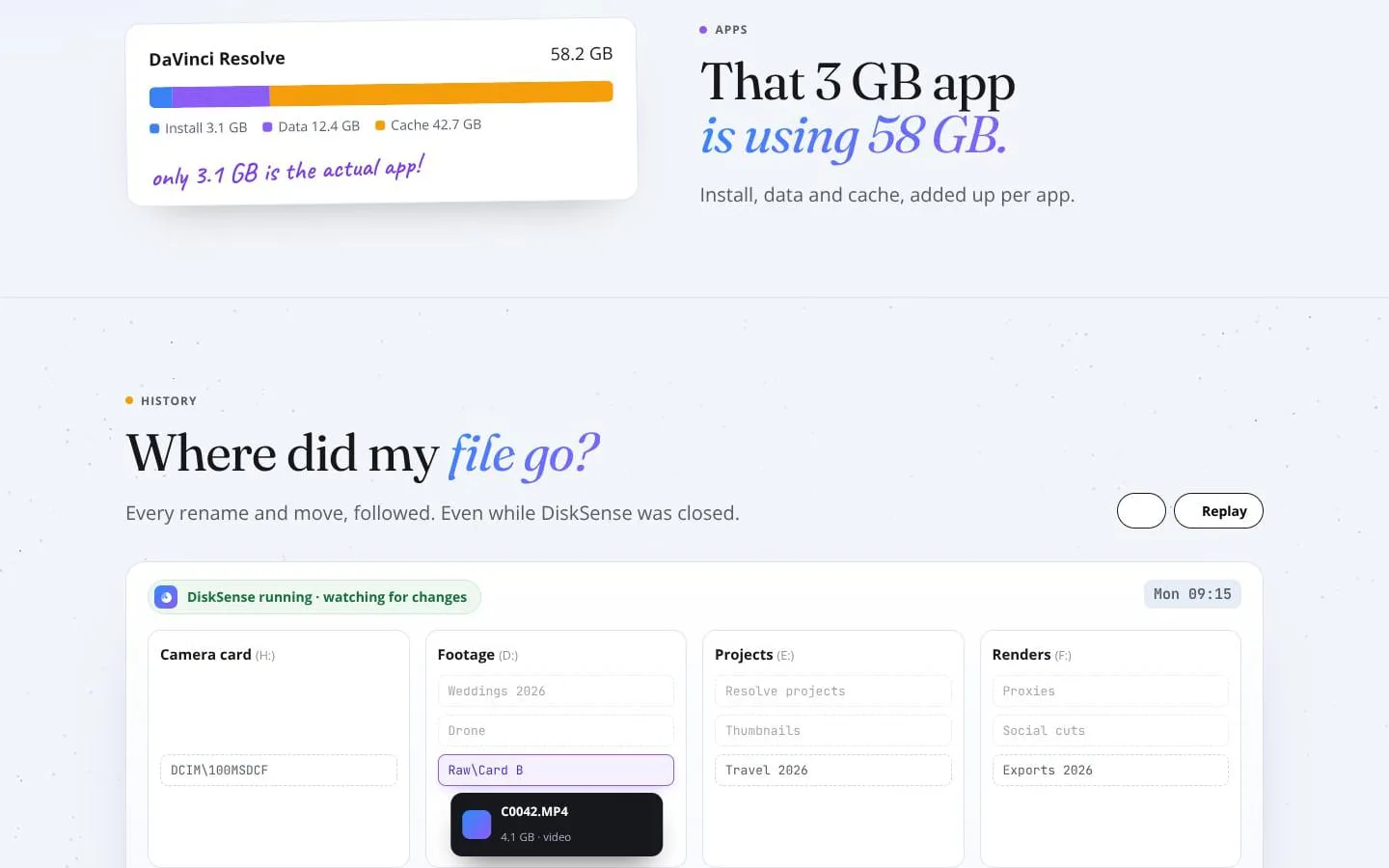
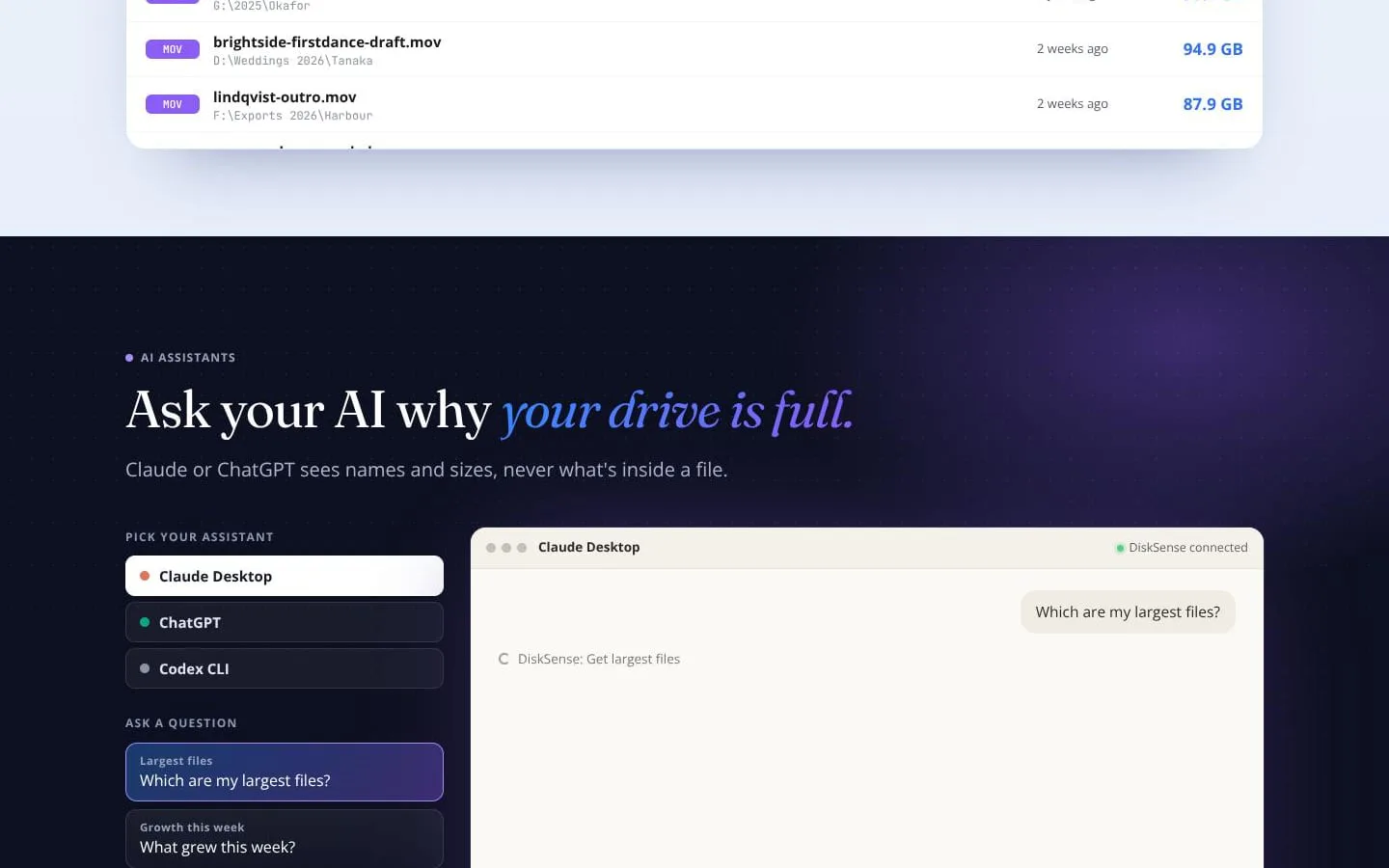
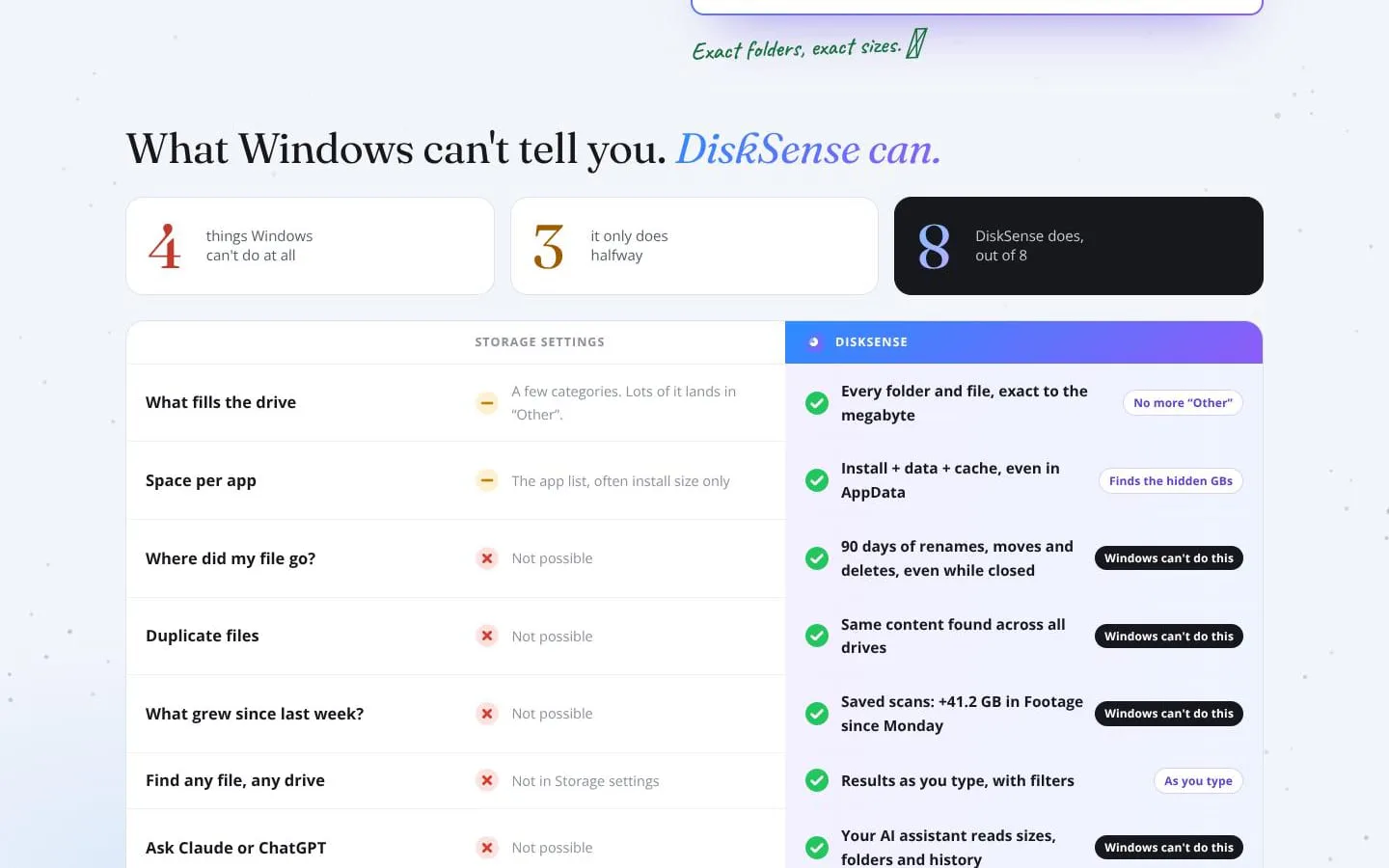
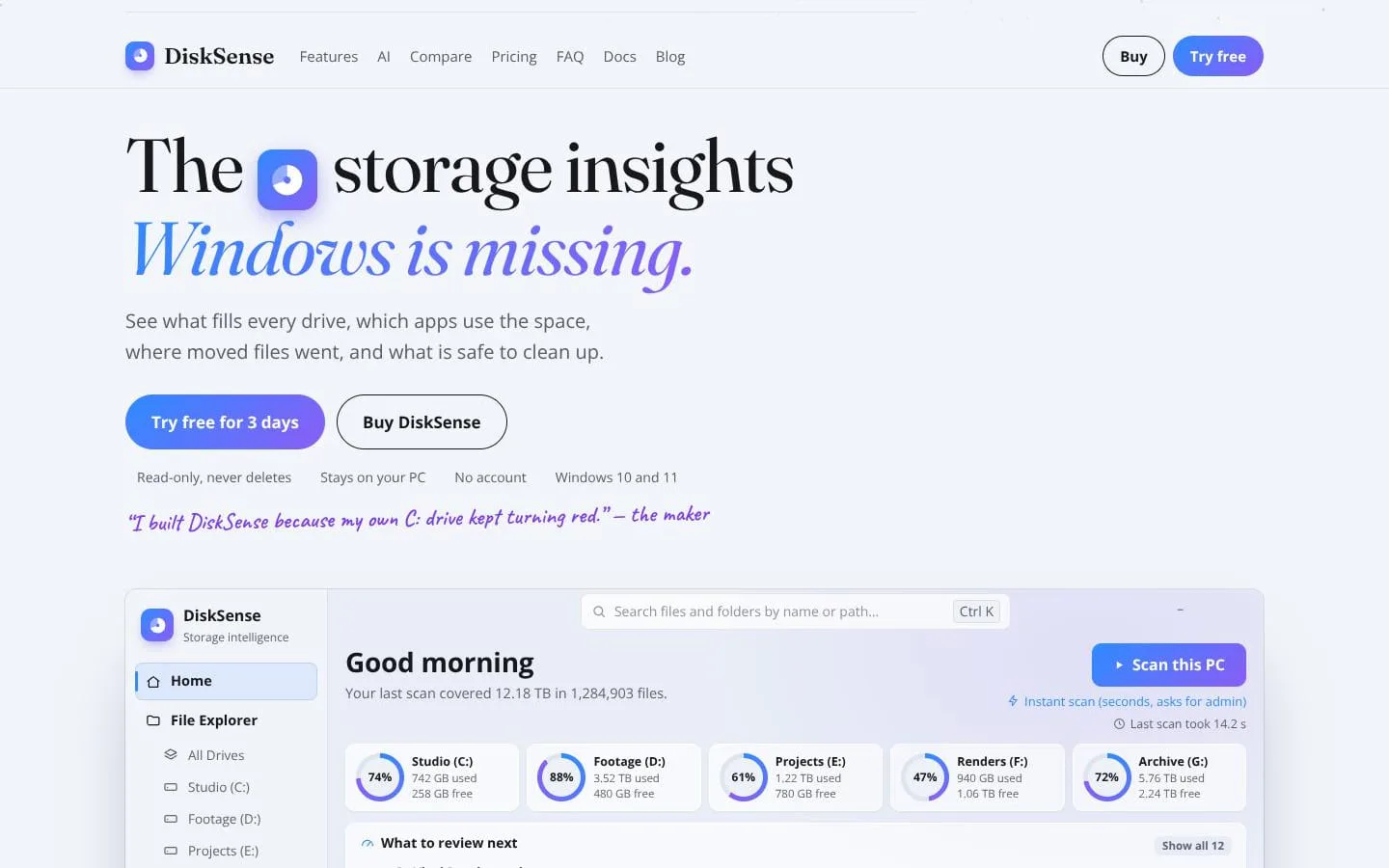
Windows Storage settings gives you a few categories and a big lump of “Other”. DiskSense shows you exactly what’s filling your drives: which folder, which app, which file moved, and what’s safe to review first. What it does Every drive at a glance: exact folder and file sizes, biggest first, with a “what to review next” list. What each app really uses: install + app data + cache added up. A “3 GB” app can turn out to be 58 GB. Duplicates across all drives: the same file in two places, found by content. File history: 90 days of renames, moves and deletes. Search a file’s old name to find it under its new one. Instant search: its own index finds any file before you finish typing. Ask your AI: a built-in MCP server lets Claude, ChatGPT, Cursor and others answer “why is my drive full?” They see names, sizes and dates, never file contents. Read-only by design. DiskSense never deletes anything. It shows you what’s there, and you decide what goes. For Windows 10 and 11.
Features
- Problem
- Drive usage summaries can hide the folders and files consuming space.
- How it works
- Scans eligible drives and presents exact sizes for folders, largest files, and storage distribution in list, table, and map views.
- Result
- Users can identify large space users across drives and open their locations in File Explorer.
- Why
- Specific locations and sizes make it easier to investigate space usage than broad storage categories.
- Problem
- An application's install size may not reflect the storage used by its data and caches.
- How it works
- Groups application storage into installation, app data, and cache, and shows associated locations.
- Result
- Users can see which apps and caches account for space and decide what to review.
- Why
- Looking beyond the install folder reveals additional app-related disk usage.
- Problem
- Files can be hard to locate after being moved, renamed, added, or deleted.
- How it works
- Records file changes and provides history for moves, renames, additions, and deletions; it can catch up on changes made while the app was closed.
- Result
- Users can trace file movements and find files by current or old names.
- Why
- A timeline of file changes helps connect a remembered filename or path to its current location.
- Problem
- Duplicate copies and potentially reviewable storage are difficult to identify safely.
- How it works
- Finds identical-content duplicates and presents review findings with paths, sizes, and risk guidance. It does not delete files or run cleanup commands.
- Result
- Users can assess possible space savings and choose what to handle themselves.
- Why
- Showing evidence and suggested next steps keeps cleanup decisions with the user.
- Problem
- Searching names and paths across drives can be slow or incomplete.
- How it works
- Searches its local index of scanned file and folder names, paths, sizes, and dates, with filters for type, size, date, and drive.
- Result
- Users can locate matching files across scanned drives and open their folders.
- Why
- A local index supports quick searches without reading file contents.
- Problem
- It can be unclear which folders caused free space to change between scans.
- How it works
- Keeps folder sizes from recent saved scans and displays growth compared with earlier scans.
- Result
- Users can identify folders that grew and investigate the changes behind them.
- Why
- Comparing scans shows where storage changed instead of relying on memory.
- Problem
- Users may want an assistant to explain disk usage using actual local scan information.
- How it works
- Provides a local MCP server for supported AI apps to query storage findings, paths, sizes, duplicates, applications, and history.
- Result
- Users can ask natural-language questions about their drives while retaining control over file actions.
- Why
- The assistant can answer questions from DiskSense scan data rather than generic guesses; the tools are read-only.
Product questions
What does DiskSense do?
DiskSense is a read-only Windows storage analyzer that shows what is using space across scanned drives, which applications use it, and how files have changed location or name.
Who is DiskSense for?
Windows 10 & 11 users
Screenshots