AI
SteerLatch
Control Mac & PC with AI and your phone
- Category
- AI
- Stage
- Growth
- For
- Individuals and teams who want to connect AI assistants to their authorized Mac or Windows computers.
About
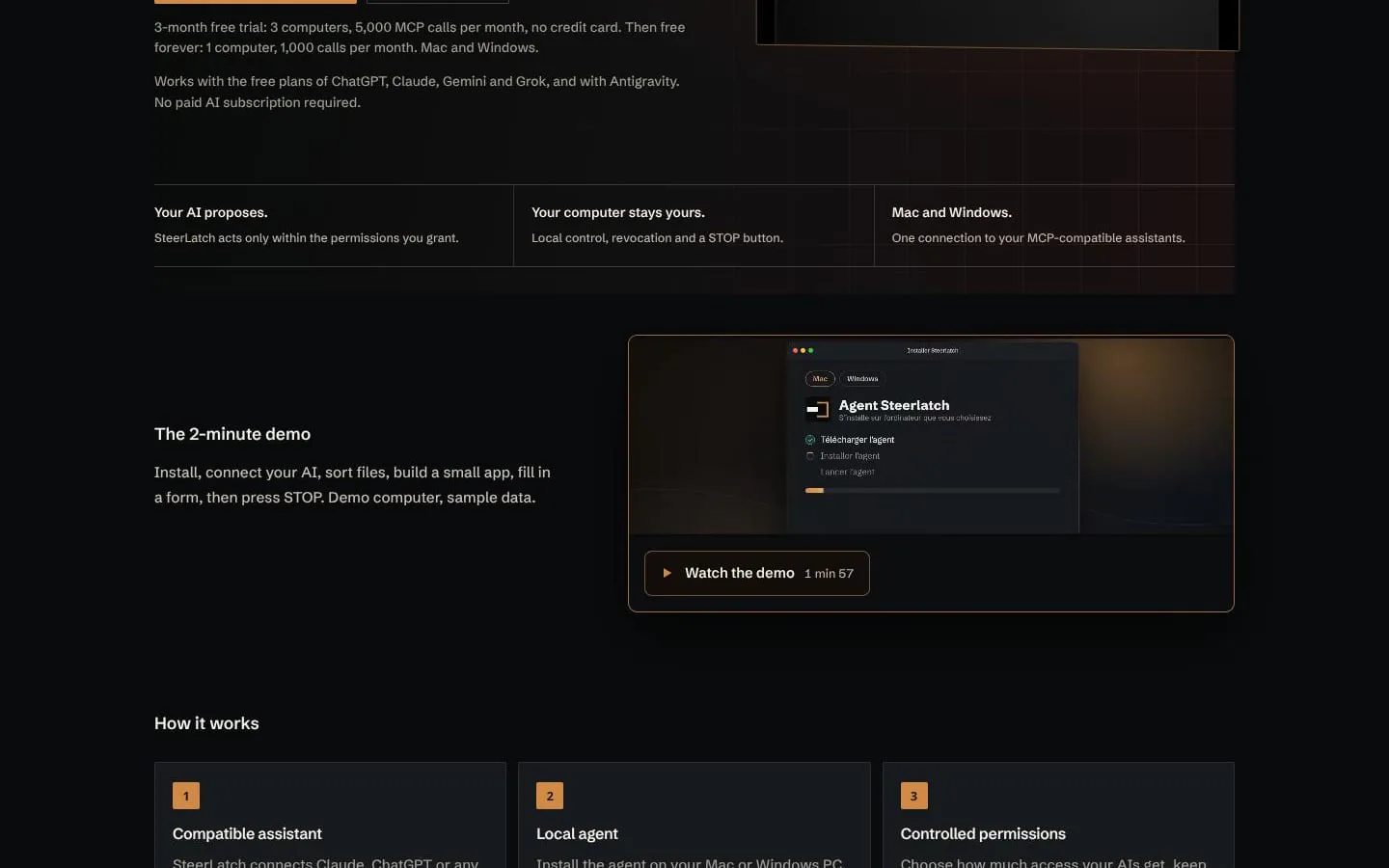
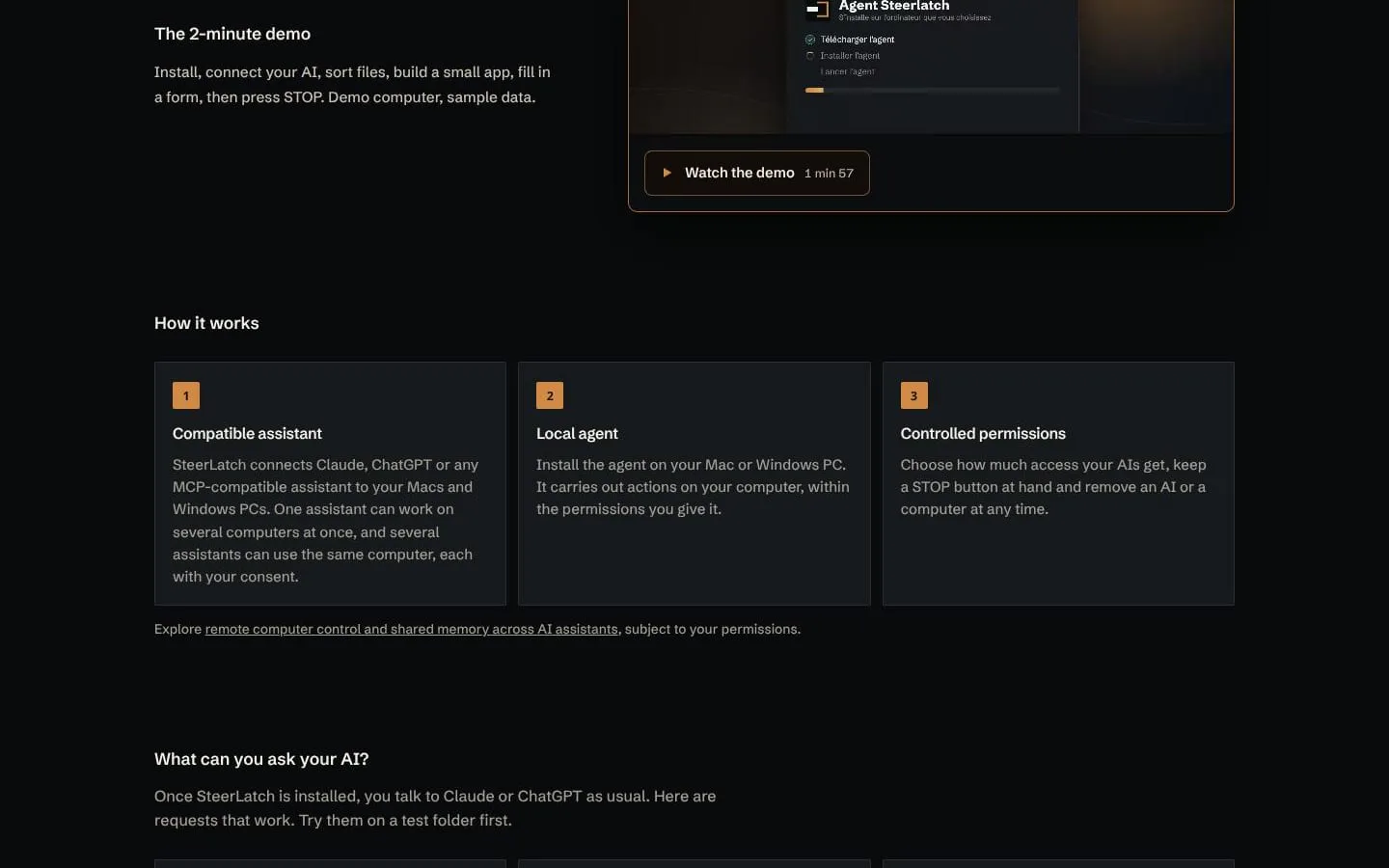
Connect ChatGPT, Claude or Grok to Mac and Windows PCs. Control your authorized computer from your phone and share context and messages across AI assistants.
Features
- Problem
- AI assistants cannot directly carry out tasks on a user’s computer.
- How it works
- Connects MCP-compatible assistants to a locally installed Mac or Windows agent that can handle permitted file, screen, browser, application, mouse, keyboard, and terminal actions.
- Result
- Tasks such as organizing files, finding documents, filling forms, and inspecting screen errors can be requested through an assistant.
- Why
- The assistant can act on the computer using the user’s existing AI interface.
- Problem
- Users may need to choose among assistants or work across multiple computers.
- How it works
- Allows one assistant to use several authorized computers and multiple assistants to use the same computer.
- Result
- People can direct work to authorized devices and coordinate assistants without reinstalling for each AI.
- Why
- Access can be configured per assistant and per computer, with consent required on each machine.
- Problem
- Computer access needs clear boundaries and a way to stop or withdraw it.
- How it works
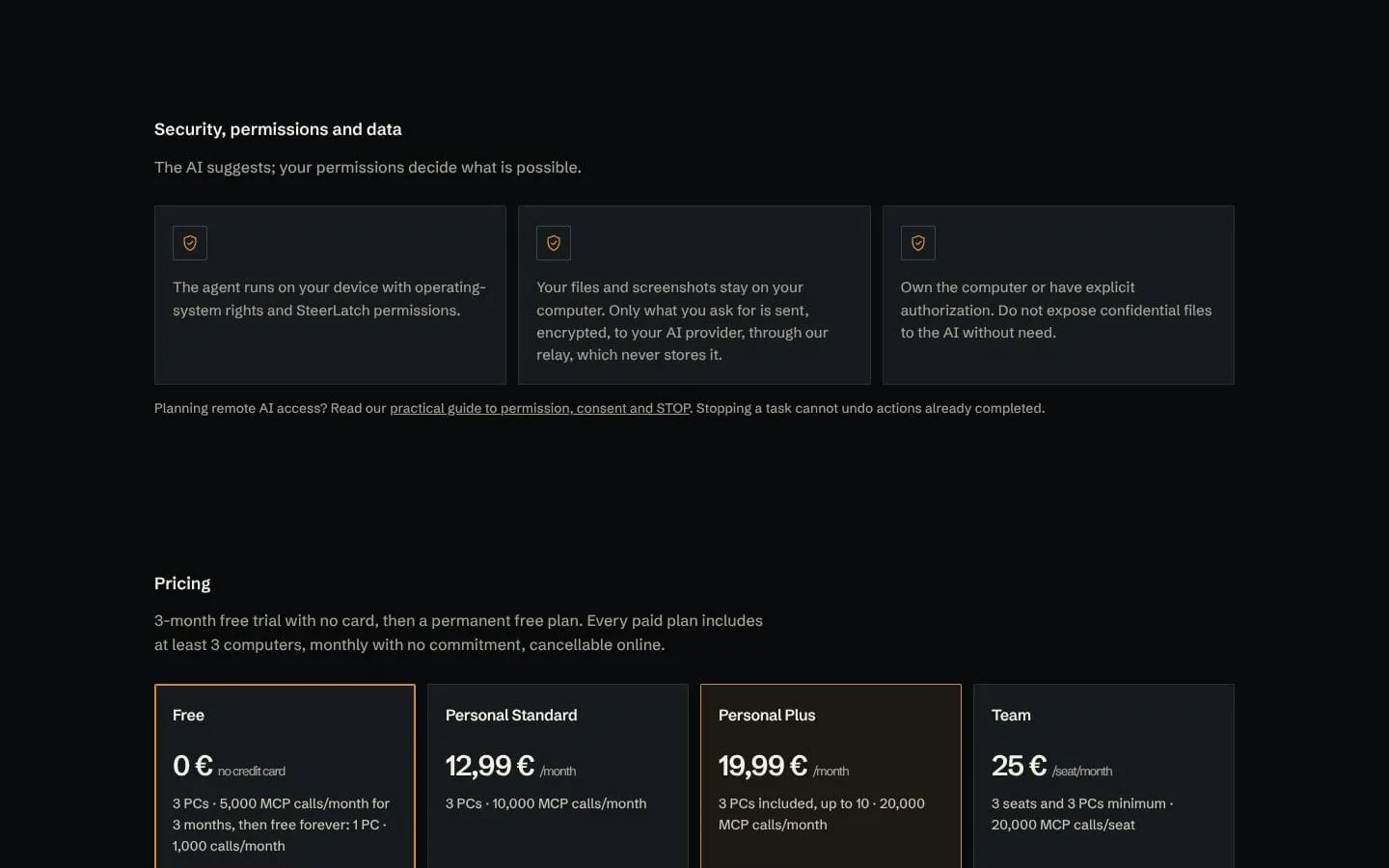
- Provides configurable access levels and durations, consent on the computer, revocation, and STOP controls.
- Result
- New actions can be blocked immediately, and authorized access can be removed or made temporary.
- Why
- Users retain control over what an assistant can do and when its access ends.
- Problem
- Multiple assistants can interfere when controlling the same mouse and keyboard.
- How it works
- Reserves the mouse and keyboard while an assistant is using them and notifies other assistants.
- Result
- Other assistants can wait, continue reading files, or work on another computer.
- Why
- Shared access should not result in competing input actions.
- Problem
- Users may need to monitor or control their paired computers away from the desk.
- How it works
- Offers remote control through a phone or browser after remote access has been enabled on the computer; the iPhone companion can show computers and access STOP.
- Result
- Users can view and control an authorized computer remotely where the feature is enabled.
- Why
- Remote access extends oversight without bypassing local operating-system permissions.
- Problem
- Users need to understand what information leaves their computer.
- How it works
- Keeps files and screenshots on the computer and sends only requested results to the chosen AI provider through an encrypted relay that does not store them.
- Result
- Requested results reach the assistant while SteerLatch does not retain their content.
- Why
- Users can limit what they expose while using AI-assisted computer actions.
Product questions
What does SteerLatch do?
SteerLatch connects MCP-compatible AI assistants to authorized Mac and Windows computers through a locally installed agent, letting the AI perform computer tasks within permissions granted by the user.
Who is SteerLatch for?
Individuals and teams who want to connect AI assistants to their authorized Mac or Windows computers.
Screenshots