


















Saved post drafts
Save post drafts for startup content creation
Saved post drafts give startup content creation a place to continue between writing sessions. Keep an unfinished Buildside update private, including attached images or videos, and reopen it from your account on another device. Prepare a product launch announcement, save notes from an experiment, or refine an AI-assisted draft before deciding when the post is ready to publish.
A closer look at Saved post drafts
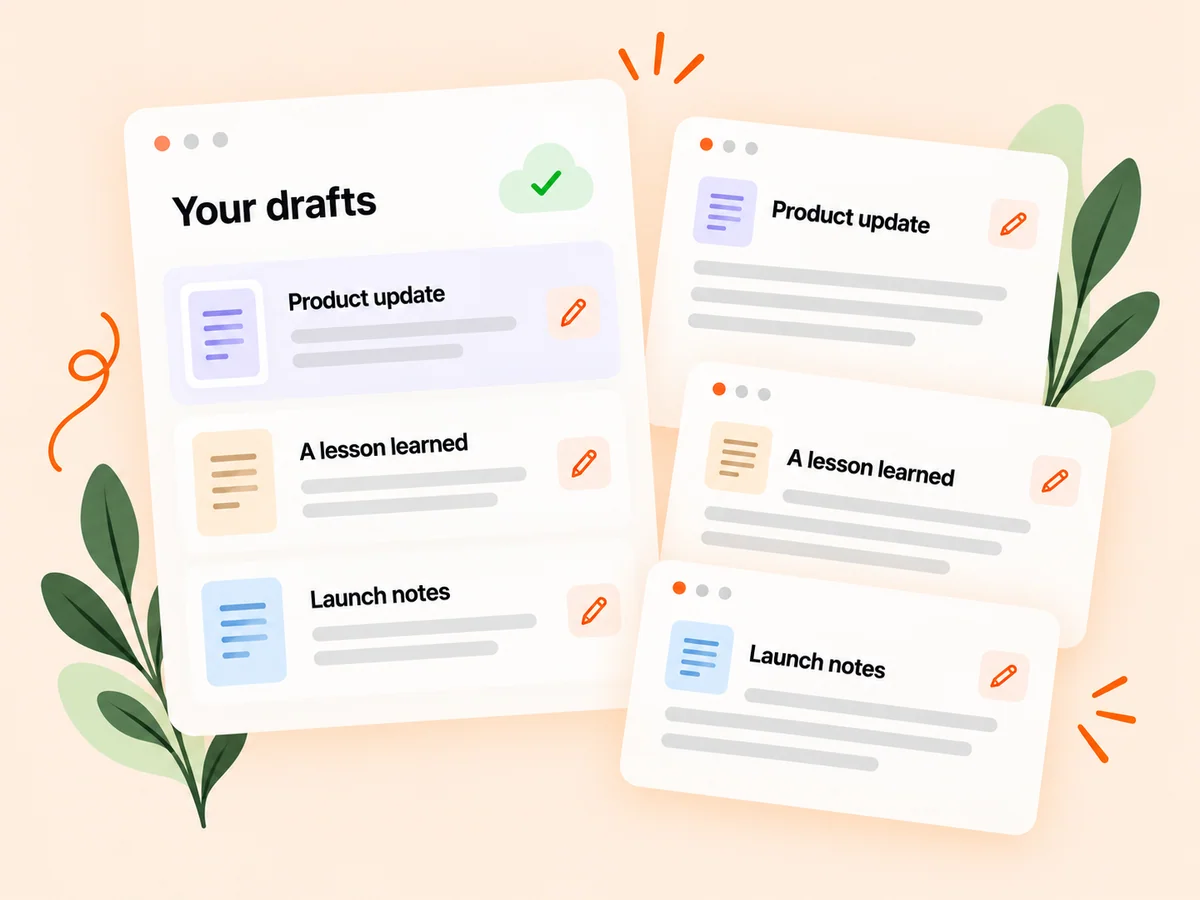
Product work rarely produces a finished story in one sitting. You may have a useful observation before you have the screenshot, or a launch draft before the release is confirmed. Saving a post draft preserves the version you chose to keep. You can return with the missing context and continue editing without turning an unfinished idea into a public update.
Preparing a good product update often happens in stages. You may write the initial note after shipping, add a screenshot later, and revisit the conclusion after checking a result. Account-saved drafts support that process by keeping unfinished posts together. A saved draft remains separate from published content and from the explicit decision to schedule a future post.
Make it useful
Keep content creation connected to your product work
Start from your own notes or use the AI writing assistant to explore an initial structure. Refine the result with specific details from your work, then save it to the draft library. The saved version gives you a place to return when you have the missing evidence or a clearer explanation.
Use the draft to preserve the useful raw material, including the problem, the change, and the question you still need to answer. You can leave the wording unfinished while you collect those details. When you return, focus on the missing substance before polishing the opening; a well-written claim still needs an accurate basis.
Explore AI writing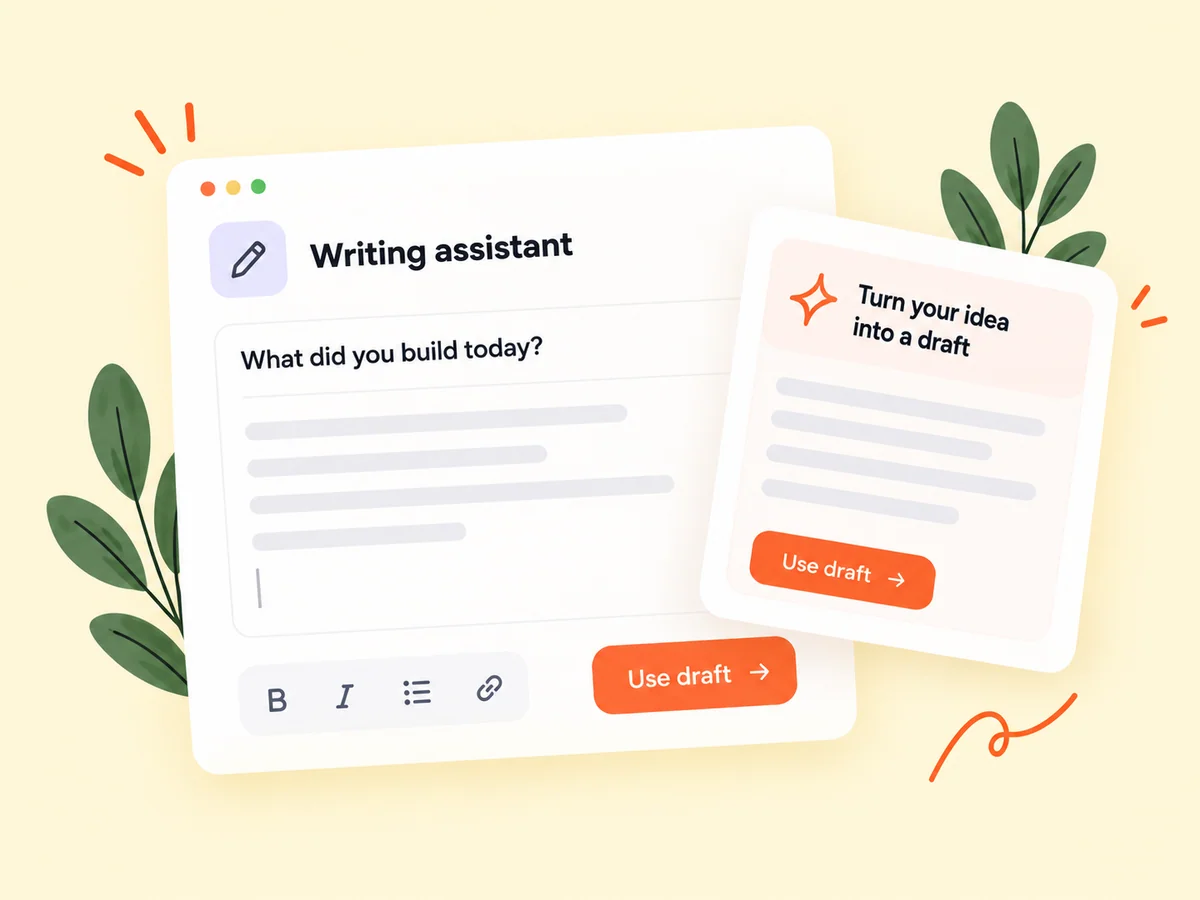
Keep building
Move from a saved draft to deliberate publication
Open Drafts from the composer to resume saved work, update its wording, or remove drafts you no longer need. When a post is ready, choose the regular publishing or scheduling flow. Saving alone does not make the post public, so you can revisit the message before deciding how to share it.
The composer’s draft library gives you a place to resume and manage saved work. Review the version you have reopened before making further changes, especially when you move between devices. Keep the distinction between a saved version and unsaved edits in mind when deciding whether to save, discard, or continue editing.
Explore scheduling
From idea to action
How to get started
Save work from the composer
Write your update, add any relevant media, and save it as a draft when you are not ready to publish. Give the unfinished post enough context that it will still make sense later. Note what changed and what needs checking rather than saving only a headline with no supporting explanation.
Reopen the draft library
Use Drafts in the composer to find the saved post and continue editing, including from another signed-in device. Use the save action to preserve the current work in your account. Check that the save completes before relying on it from another device or leaving an editing session.
Review the final version
Check the copy and attachments before publishing or scheduling. Remove unused drafts through the library controls when needed. When reopening, verify any time-sensitive statement and confirm the media still matches the text. A draft written before a release may need a different availability statement afterward.
Find your starting point
Prepare startup updates across several writing sessions
Use saved drafts when an update needs another fact, a better explanation, or a later review. A founder preparing a product launch might write the introduction first, add screenshots after testing, and check availability before publishing. Saving each meaningful revision keeps the draft useful across those stages. It also gives a rough idea somewhere private to develop before it enters the community feed.
They also help when your working environment changes. Start the post in one session, save it to your account, and reopen it when you can give the wording more attention. The purpose is continuity, so include enough background that the next editing session does not begin by reconstructing the original idea.
An example to adapt
Example: prepare a launch update in stages
Imagine you finish a new report template but want to review the screenshot before announcing it. Save a draft with the customer problem, the new capability, and a note about the image you still need. Keep the availability statement accurate to the current stage.
Later, reopen the draft, add the reviewed screenshot, and check that the text describes what users can actually do. Then choose whether to publish or schedule it. This hypothetical workflow lets preparation happen over several sessions while keeping the final publishing decision explicit.
Make the most of it
Keep your post draft library useful and current
Make the first lines of a draft clear enough to recognize when you return. State the product change and what still needs checking, then save the version you want to keep. A manageable draft library supports content creation better than a pile of indistinguishable ideas. Before publication, reread the entire post because product details may have changed since the original writing session.
Treat a reopened draft as material to review, not a promise that everything in it is still current. Product scope, screenshots, and launch timing can change. Update those details first, then refine the wording and decide whether the post now offers something useful to its reader.
Good questions, clear answers
About Saved post drafts
How do saved drafts help with content creation?
Saved drafts let you prepare a Buildside post over several sessions while keeping it private. You can retain text and supported media, reopen the saved version on another device, and edit before publishing. Use drafts for product launch copy, unfinished lessons, or an AI-assisted starting point. Saving a draft does not schedule it or publish it to the feed.
Can I include images or videos in a draft?
Yes. Saved drafts support attached images and videos alongside your text. Review the media when you reopen the post so an old screenshot does not contradict newer wording. Remove any private information before using the material in a public update.
Can I continue a draft on another device?
Account-saved drafts can be reopened from another device when you sign in to the same Buildside account. Make sure the account save has completed before switching. Review the reopened version and avoid assuming that unsaved edits from a different session have already been preserved.
What happens if I close a post before finishing it?
The composer offers choices for saving, discarding, or continuing unsaved work. Read the prompt and choose the outcome you intend. If you are editing an existing draft, distinguish the previously saved version from the changes you have just made so you do not discard work accidentally.
How are saved drafts different from saved posts?
A draft is your own unfinished content kept for editing before publication. A saved post is a reference to community content that already exists. Use drafts to develop your message and saved posts to revisit useful ideas, while keeping your own experience distinct from the source that inspired it.
Saved post drafts